Welcome To MOON DMA

Guide
DMA guide
4K FUSER guide
2K FUSER guide
KMBOX-NET
- 2K Fuser Overview
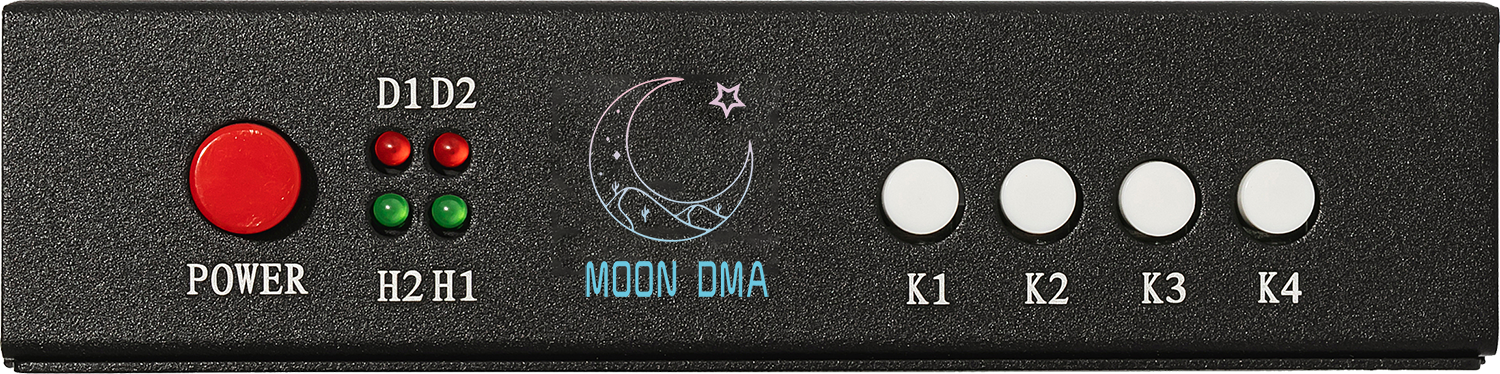
💡 Indicator Lights:
- [D1]: Power indicator (solid light when powered on)
- [D2]: Fusion function indicator (solid light when fusion is on, off when fusion is off)
- [H2]: DP secondary input signal indicator (solid light when functioning normally)
- [H1]: DP primary input signal indicator (solid light when functioning normally)
▶️ Button Functions:
- Power: Power switch
- [K1] Secondary Screen Mode – Displays only the 2nd PC screen while disabling the main screen
- [K2] Main Screen Mode – Displays only the main PC screen while disabling the 2nd screen.
- [K3] Fuser Activation & Adjustment – Enables the fuser and allows adjustment of its strength (black level).
- [K4] Factory Reset & Re-engagement – Restores factory settings and re-engages the fuser if needed.
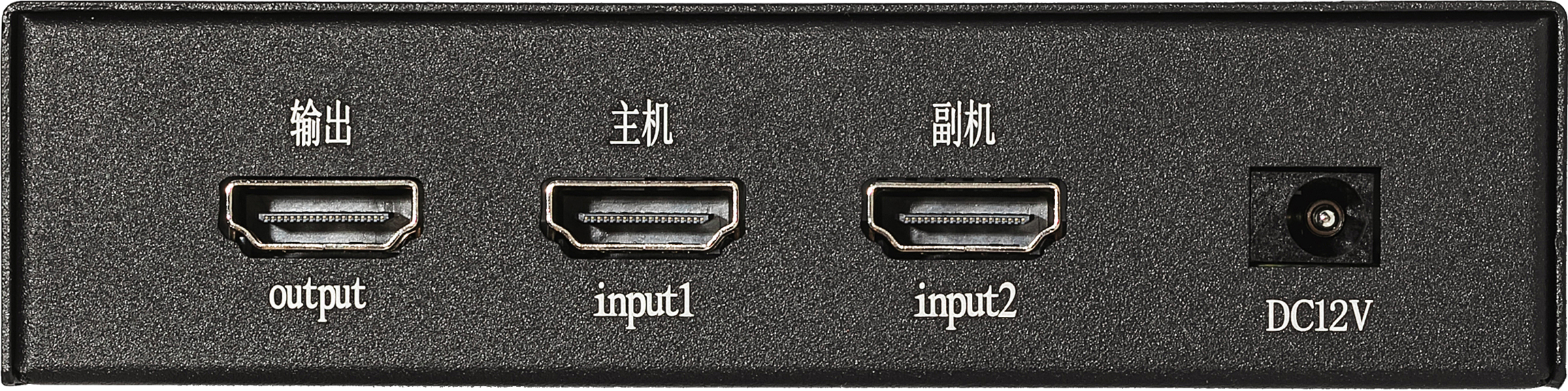
🔌 Port Guide:
- Output: Connect to the primary display. (Only the fuser should connect to main monitor)
- Input1: Connect to the GPU of your main PC.
- Input2: Connect to the GPU of your secondary PC.
- DC12V: Power input.
✅ You're Done
You now have a basic understanding of the 2K HDMI Fuser and how the cables are connected.
- 2K Fuser Setup
Initial Setup
- Disconnect all displays except for the main monitor.
- Connect the main monitor to the Fuser (not directly to the GPU).
- Ensure all HDMI cables connected to the Fuser are HDMI 2.0.
Configure Display Settings
On Both PCs:
- Right-click on an empty area of the desktop.
- Select Display Settings.
- Scroll down to the Multiple displays section and select Extend these displays.
On the 2nd PC:
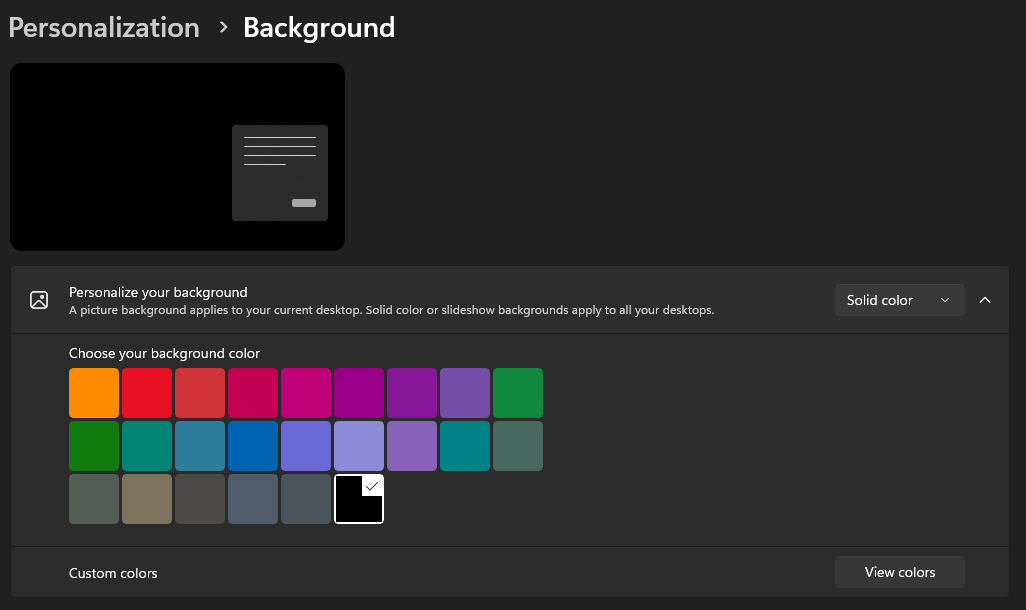
- Go to Start > Settings > Personalization > Background/Wallpaper.
- Under Personalize your background, select Solid Color and choose Black.
Reconnect Cables to the Fuser
- Ensure all three HDMI 2.0 cables are connected to the Fuser.
- Make sure the monitor is no longer directly connected to the GPU.
Troubleshooting
Desktop Apps Are Merged / Two Search Bars Visible
- Press K2 (Main Screen Mode) when no overlay is active.
Second Monitor Shows "No Signal"
- Ensure the 2nd monitor is turned on.
- The 2nd monitor should be connected to its respective PC, not the Fuser.
Refresh Rate Issues (Limited to 60Hz or 90Hz)
- This indicates not all HDMI cables are HDMI 2.0.
- Use three HDMI 2.0 cables for the Fuser setup.
- The Fuser requires 3x HDMI 2.0 cables for full functionality.
✅ You're Done
- Your 2K HDMI Fuser is now setup and ready to use!