Welcome To MOON DMA

Guide
DMA guide
4K FUSER guide
2K FUSER guide
KMBOX-NET
- Overview of MOONDMA Hardware
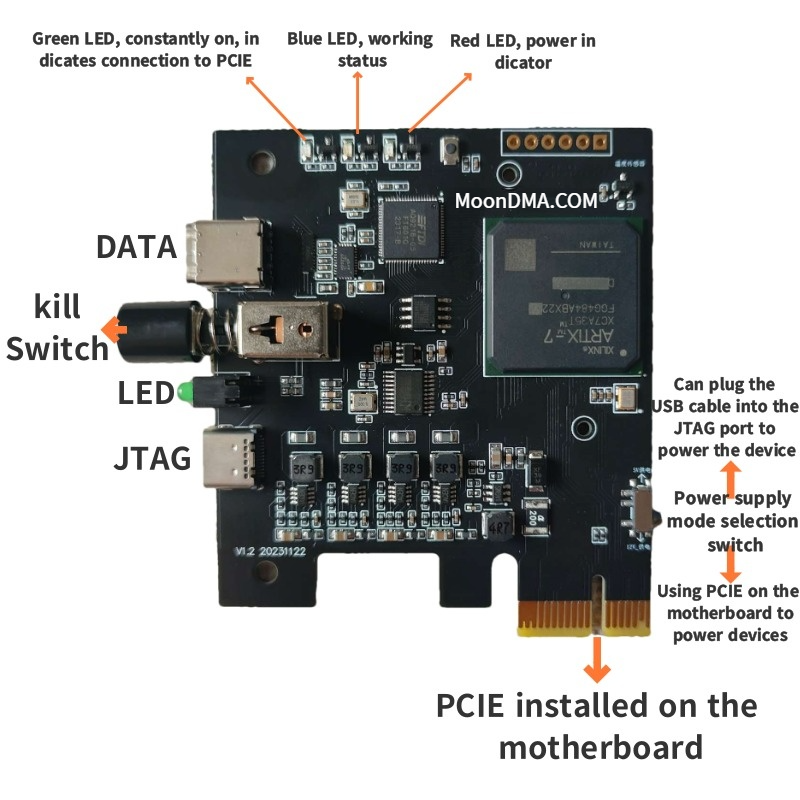
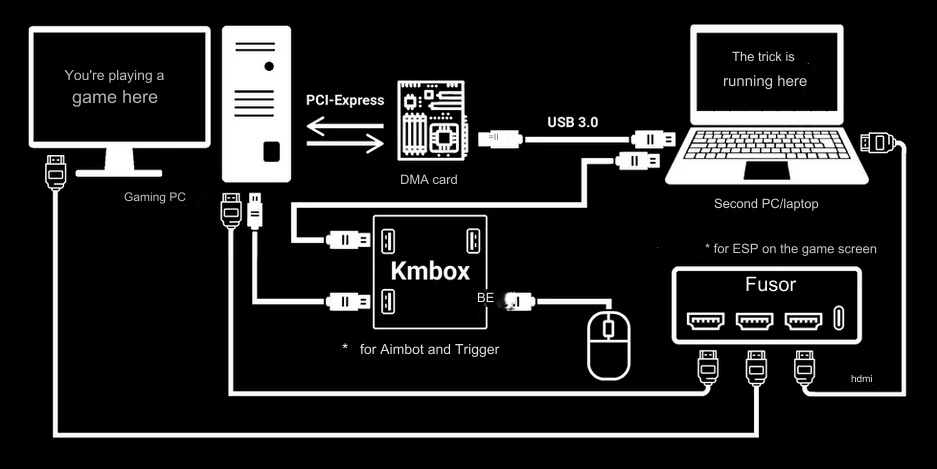
- Hardware Setup (Game PC)
Power Down Your Game PC
Completely shut down your main PC (Game PC) before inserting the DMA card.
Insert the DMA Card
Plug your DMA card into any available PCI-e slot on your Game PC.and can fit into x1, x4, x8, x16 slots.
Connect to the 2nd PC
Connect the DATA port on the DMA card to the USB 3.0 interface of the second PC (second computer)using the included USB 3.0 data cable.

Enter BIOS on Game PC
a. Power on your Game PC and enter BIOS/UEFI setup:
b. Usually done by pressing DEL, F2, or ESC during boot (varies by motherboard).
Disable/Adjust the following Settings on Game PC System BIOS:
a. We primarily need to disable Virtualization on your system, since this can interfere with DMA Memory Reading. Disable any Virtualization settings in your System BIOS.
i. On Intel CPU Motherboards this will usually be listed as:
1. Virtualization / IOMMU
2. VT-d
ii. On AMD CPU Motherboards this will usually be listed as:
1. Virtualization / IOMMU
2. SVM
b. Disable NX-Bit (Only if available. If you can’t find it skip this step)
c. If needed set PCI Slot of DMA Card from Auto to Gen1 (Advanced > PCI Settings)
Make sure Memory Integrity / Core Isolation is Off on your Game PC. This may be unavailable/already disabled
on some systems, so if you cannot get this page to load, you are likely already good to go. See Device protection in Windows Security – Microsoft Support
Diable Memory Integrity
On your Game PC, do the following:
- Open Windows Security
Navigate to:
Device Security > Core Isolation > Core Isolation Details
- Turn off “Memory Integrity”
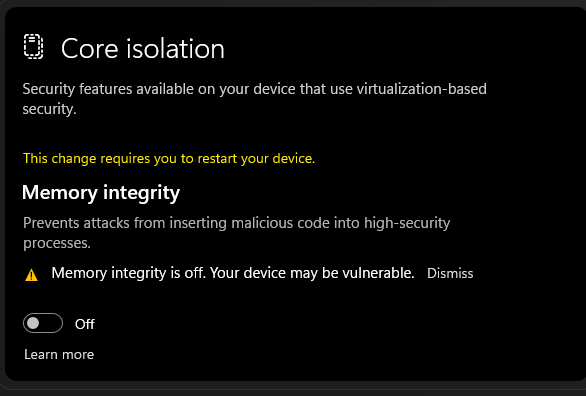
- If this section won’t load, the setting may already be disabled or unsupported — no action needed.
- FTDI Driver Setup (Radar PC)
These steps will install the FTDI Driver on your Radar PC. See the screenshot below to see if you have the driver already installed. If already installed you can skip to Testing.
a. You can launch Device Manager from the Search Box in the Start Menu.
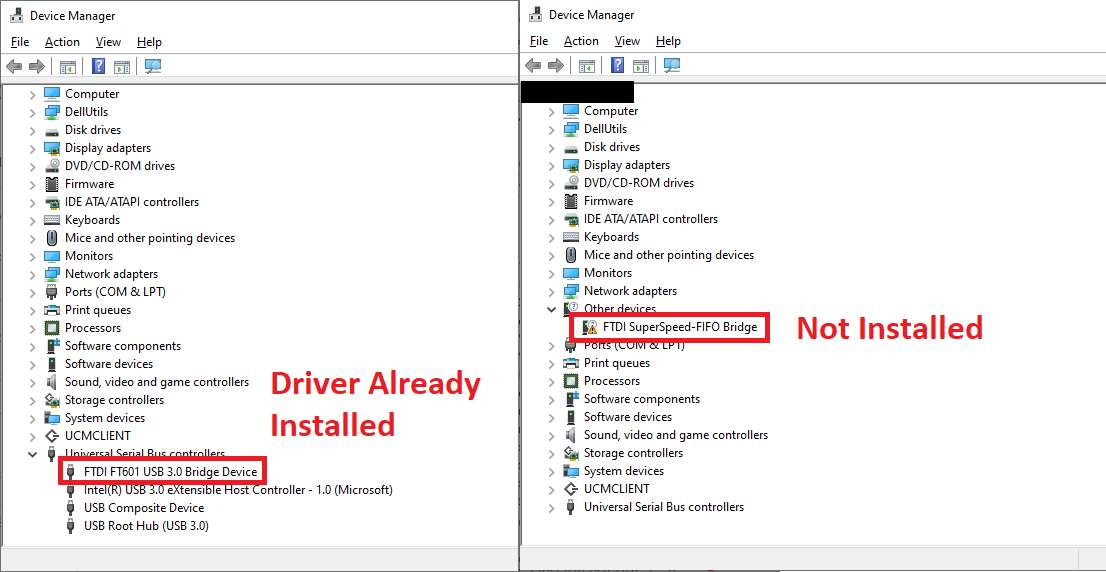
✅ Correct Driver (No action needed)
Device appears as: FTDI FT601 USB 3.0 Bridge Device
Located under: Universal Serial Bus devices
Status: Working properly → Skip this guide
❗ Missing Driver (Install now)
Device appears as: FTDI SuperSpeed-FIFO Bridge
Located under: Other devices
Status: Yellow exclamation mark → Proceed below
❌ Wrong Driver (Remove first)
Device appears as: FTDI SuperSpeed-FIFO Bridge
Located under: Universal Serial Bus devices
Action: Right-click → Uninstall device → Check ‘Delete driver’
Then proceed with installation below
Download the Windows x64 FTDI Driver from:
- Windows x64 FTDI Driver: FTD3XX Driver v1.3.0.10↗
Install Driver
Extract the downloaded .zip file
Run the .exe installer
Follow the installation wizard
Restart your computer if prompted
The FTDI Driver should now be installed on your Radar PC (See Step 1 to verify).
a. If the device is not registering, try to reseat the USB Cable and/or reboot your Radar PC.
- Testing (Radar PC)
Download and Unzip the dma-test.rar package (if you do not already have it).
a. Read the README.txt instructions.
Run the test tool on your 2nd (Radar) PC.
Run the Full Test.
If successful, you should get a message saying that the test PASSED.
a. Latency Test Results:
i. <4000 = Fail
ii. 4000+ = Acceptable
iii. 5000+ = Good
iv. 6000+ = Excellent
b. Throughput Test Results:
i. <100 = Fail
ii. 100+ = Acceptable
iii. 150+ = Good
iv. 200+ = Excellent
Passing Test Example:
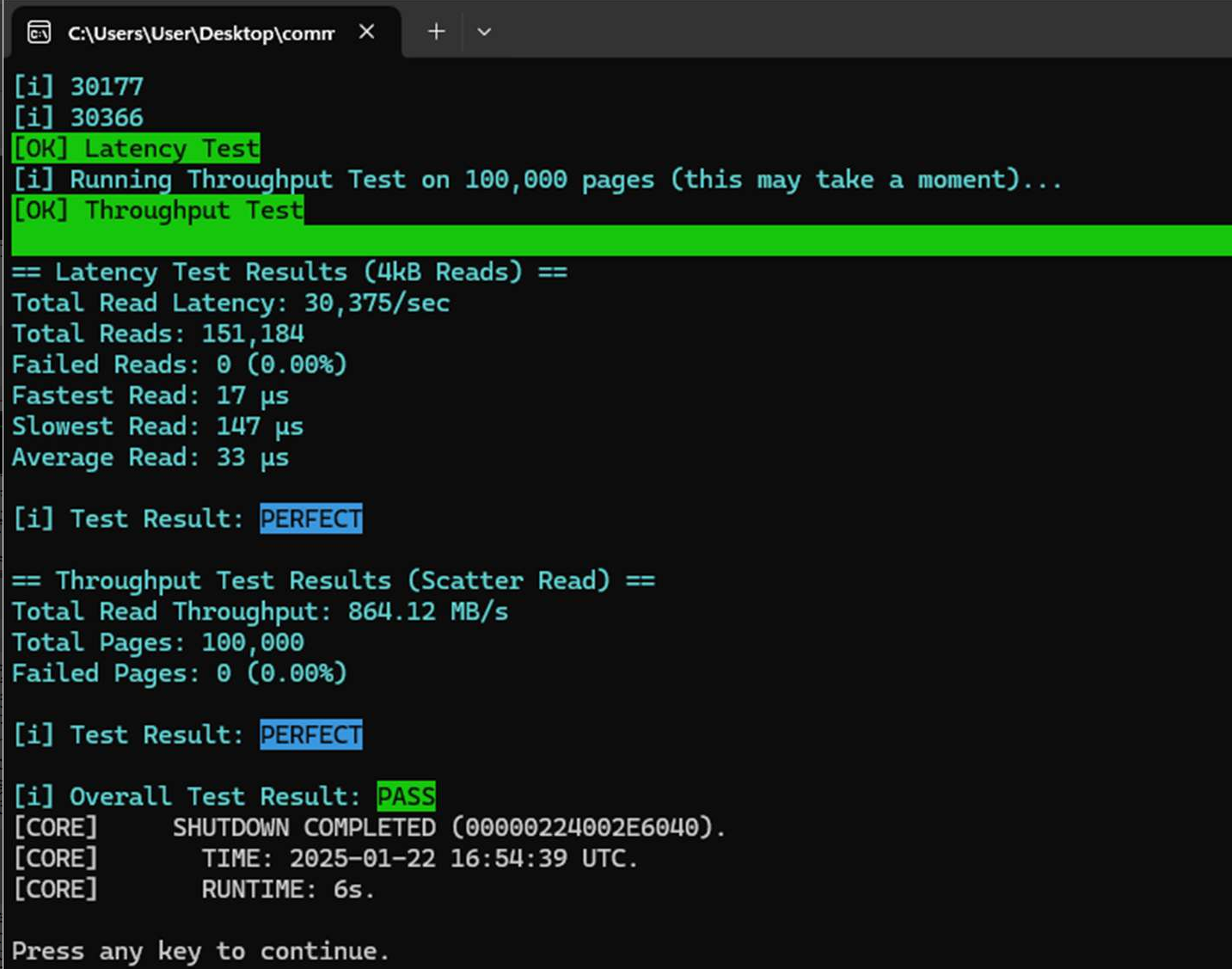
If there are issues, please see the Common DMA Troubleshooting section below before messaging support
- DMA Troubleshooting Guide
ERROR - [FAIL] VMM INIT FAILED.
a. The most common cause of this error is that your DMA Card/Connection is ‘hung’. This most commonly occurs after your Game PC does a fast reboot, or if your Game PC was previously in sleep mode.
i. Reboot BOTH your Game PC and Radar PC.
ii. This should resolve this issue 99% of the time.
b. DOUBLE CHECK THAT YOU COMPLETED ALL STEPS IN THE SETUP GUIDE ABOVE!! THIS IS ONE OF THE BIGGEST REASONS PEOPLE GET THIS ERROR.
ERROR - DEVICE: FPGA: ERROR: Unable to connect to USB/FT601 device [0,v0.0,0000]
a. Make sure you installed the FTDI Driver on your Radar PC (See the setup guide above for details).
b. Make sure you are plugged into the DATA PORT on your DMA Card.
Other Common Errors:
a. Failed to retrieve Physical Memory Map!
i. Troubleshoot your USB Connection (See #4).
ii. If all else fails, re-install windows on your Game PC.
b. [SYMBOL] Offline symbols unavailable – file ‘info.db’ not found.
i. This means that PCILeech was unable to download symbols from the Microsoft Symbol Server. This assists PCILeech in reading memory from your Game PC System.
ii. Make sure you unzipped the folder and all files.
iii. Make sure symsrv.dll and dbghelp.dll are present in the folder.
iv. Make sure you have internet connectivity and your firewall(s) are not blocking anyconnections.
v. If all else fails, you can download the latest info.db file from the MemProcFS repository
(https://github.com/ufrisk/MemProcFS/releases win-x64), and include it in the folder.
This is an ‘offline’ symbols dump.
c. FPGA: TINY PCIe TLP Algorithm auto-selected!
i. This indicates that your DMA Card is operating at lower speeds. This can sometimes be due to a firmware issue, or more commonly a poor usb connection.
ii. Make sure your USB Cable is seated securely on both ends. Try different USB Port(s).
d. [CORE] Initialization Failed. Unable to locate valid DTB / Unable to auto-identify operating
system.
i. Make sure you made the BIOS Adjustments on Game PC per the setup steps.
ii. Troubleshoot your USB Connection.
iii. Last resort: Re-install windows on Game PC.
DMA Test Tool - Test Result: FAIL / General Failures
a. If the DMA Test is giving you a failure message, it is most commonly due to your
latency/throughput being too low.
i. Latency under 4000 Mem/Sec.
ii.Throughput under 100 MB/s.
b. This is most commonly due to a poor USB Connection:
i. Make sure your USB Cable is a data-rated (not charging-only!) USB 3.0 Cable, and is securely
seated on both ends (DMA Card / Radar PC).
ii. On your Radar PC go into Power Plans and set your Power Plan to High Performance.
This can improve CPU / USB speeds.
iii. Try different USB Ports / USB Cables.
iv. Keep playing with it! Most people resolve slow latency/low throughput by re seating their DMA Card, reseating the USB Cable, and/or sometimes the DMA Card bracket may get in the way of the USB Cable fitting securely.
v. If your Radar PC is significantly below recommended specs, this can diminish DMA
Latency/Throughput.
c. This can be less commonly caused by the Firmware on your DMA Card.
❗ Some Vanguard / Faceit ‘bypass’ firmwares will reduce the latency/throughput of your card.
d. In some cases DMA Software may still run fine with higher latency/lower throughputs
(particularly if you are close to the cutoffs).
❗ We recommend running a Stress Test, and looking for any ‘drop outs’. If the connection is stable you may be fine even if you have slow latency.
DMA Software – Not loading up, entities disappearing or not showing, other anomalous behavior:
a. This is most commonly caused by Paged Out Memory.
i. When your system / target process are under High Memory Pressure, assets in memory may
get shifted to your Page File.
ii. The Page File is a file located on your hard drive that contains low priority / less commonly
accessed items.
iii. Since the Page File is located on your hard drive, your DMA Card cannot read from it.
iv. This can cause undefined behavior in many DMA Software(s), and lead to a lot of frustration.
b. This is most commonly resolved by installing additional System Memory (RAM) in your Game PC.
c. You can also disable the System Page File in Windows on your Game PC (Not Recommended:
Your system can BSOD if Memory Commits exceed available memory).
❗ If you have any issues after following this guide, please contact the Support Team for your DMA Card Hardware/Firmware.